These FAQs refer to the Gold Standard Impact Registry

Relevant links
- Impact Registry Landing Page
- Impact Registry User Guide
- Gold Standard Fee Schedule
SECTIONS
- About the Gold Standard Impact Registry
- Account Setup and Structure
- Users, Roles and Permissions
- Billing and Company Details
- Credit management
About the Gold Standard Impact Registry
What is the Gold Standard Impact Registry?
The Gold Standard Impact Registry tracks the certification status of climate projects engaged in the Gold Standard certification process. It offers a comprehensive public view of their progress and provides access to essential project documentation, empowering stakeholders with the knowledge needed to make informed decisions.
The Impact Registry is where products for Gold Standard projects, such as carbon credits, are issued, held, transferred, and retired, providing transparency and credibility. It can be considered the ‘source of truth’ for information related to Gold Standard products, with unique serial numbers generated for every issued credit, allowing full traceability through the lifecycle of the credit from generation to sale, and eventual use or ‘retirement’.
It also showcases the certified Sustainable Development Goal (SDG) impacts. By highlighting these tangible outcomes, we demonstrate the real-world contributions of Gold Standard-certified projects.
The Impact Registry is used by a range of stakeholders including project developers, academics, credit purchasers, brokers and exchanges, marketplaces, and the wider public.
You can read more about the Impact Registry and find our User Guide on the Impact Registry Landing Page.
Do I need a Impact Registry account?
All project information and documentation is available publicly in the Impact Registry. There, you can view project information including credit issuances and retirements, and use the export function for a csv file export, without a Registry account.
If you have purchased credits and would like to view your retirements in the Registry, you can search the retirements using either your order number or the serial number that appears on the certificate that was provided by email at time of purchase.
If you would like to open an account in the Registry to be able to initiate and accept transfers and retire credits, please refer to the FAQ How do I open a Gold Standard Registry account?.
Can I automate data extractions from the Registry?
Gold Standard does not presently offer automated data extraction from the Impact Registry.
Users can manually export data by selecting the 'Export' button located at the bottom right of the page.
You do not need an Impact Registry account to export dataIs there an API to the Impact Registry?
Gold Standard does not currently have an API to the Impact Registry, although this is in the list of planned Registry developments.
You can keep up to date with new developments to the Impact Registry and across Gold Standard by signing up for our newsletter.
Account Setup and Structure
How do I open a Gold Standard Registry account?
Documentation needed to open a Gold Standard Registry account can be found in How do I open a Gold Standard Registry account?
I need to hold credits on behalf of a third-party. How can I do this?
If you are holding credits on behalf of a third-party, this should be done using a subaccount.
How do I open a subaccount?
There is no difference in functionality between a main Impact Registry account and a subaccount however, structurally, they are different. A subaccount can be used for storing credits/retiring credits on behalf of customers, or for a separate operational division of the same company.
Please note that an account holder who holds credits on behalf of a third-party is permitted to do so only if such credits are held in a subaccount. There is no requirement to open a subaccount if the credits are being retired on behalf of the third-party – this can be done in the main Impact Registry account.
Subaccounts can also be used for separate storage of credits to fit with a company’s organisational structure.
To open a subaccount, we require the account manager to email registry@goldstandard.org with the following information:
- Name of the subaccount
- Email address(es) of the user(s) who need access to this subaccount
Can I use a shared email address for my registry account?
For security and auditing purposes, it's not possible to register a shared email address. It is possible, however, to have more than one login to the account.
If you would like to add users to your Registry account, please follow the steps outlined in How do I add users to my account?
Users, Roles and Permissions
How do I add users to my Impact Registy account?
A Gold Standard Impact Registry account has one account manager, but there can be multiple account users. All users have the same permissions and functionality to initiate and accept transfers and to retire credits. We currently do not offer a read-only user access. However, you may be interested in setting up a second-user approval.
To add new users to your account:
1. The account manager should email registry@goldstandard.org stating
- the name and number of the Impact Registry account,
- the new user's name,
- confirmation that authorisation is given to access the account,
- confirmation that the new user can access the subaccounts (if there are).
2. The new user should email separately quoting the name and number of the account, and provide a copy of their photographic ID, e.g. passport, driving licence or national ID card. This should also be sent to registry@goldstandard.org.
3. The new user should also visit the Impact Registry, and click 'Login' followed by 'Sign-Up', and complete the short process. They'll receive an automated email asking them to verify their email address and login.
Where can I find a list of users for my Registry account?
Please contact us at registry@goldstandard.org with details of your Registry account (such as the Registry account number) - we will be happy to provide a list of users in your account.
Can a user have read-only access to a Registry account?
The Impact Registry does not currently offer read-only user access.
All users in an account have the same permissions and functionality to initiate and accept transfers, and retire credits.
You may be interested in setting up a second user approval.
How do I set up second user approval?
Second user approval enhances security and reduces risk by requiring two individuals to authorise transactions. This helps reduce errors and ensures accuracy by having actions verified by more than one person. It also acts as a deterrent against fraud and helps meet any internal or regulatory compliance requirements.
When a user initiates a transaction, all other users associated with the account shall receive an email notification informing them that second user approval is required. Any other user can confirm the action. At this time, it is not possible to specify who the approver is.
Please note that this feature is disabled by default. To enable the second user approval feature, the account manager should email registry@goldstandard.org requesting the implementation of this feature.Once set up, the following steps describe the second user approval process for all transfers and retirements initiated on your account:
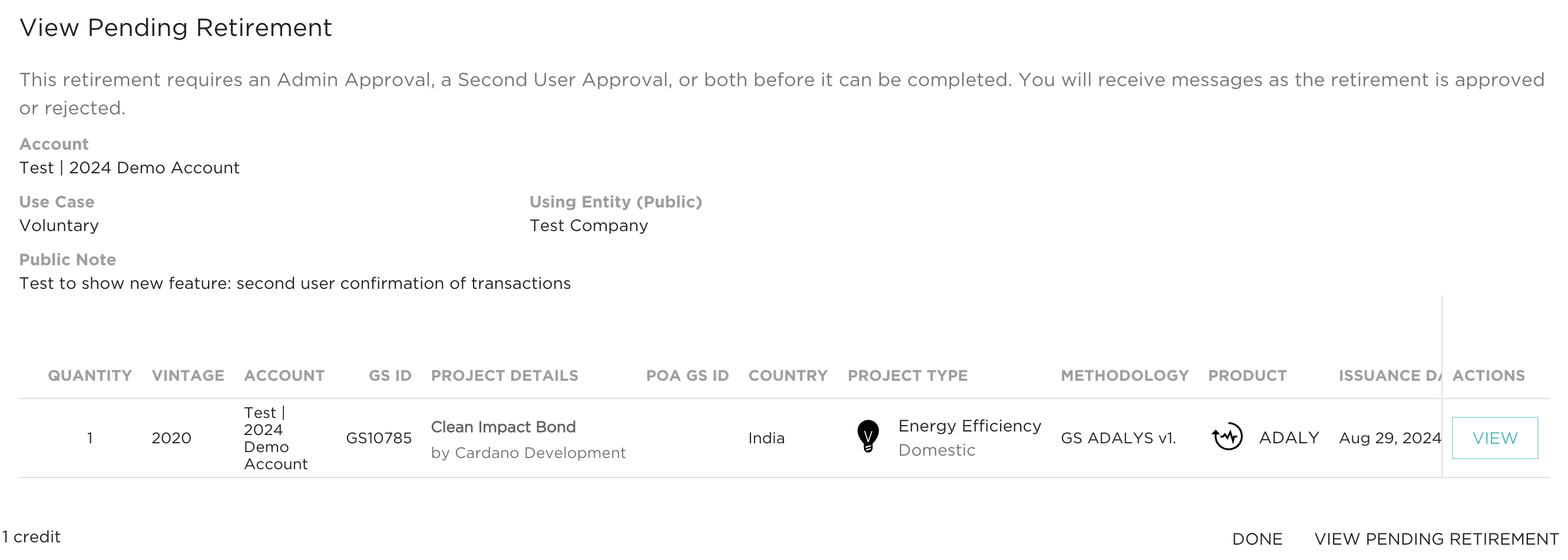
Step 1:
The first user initiates the retirement or transfer of credits.
Once submitted, the credits will be marked as Pending Approval. All other users on the account will receive an email notifying them that a transaction has been initiated and requires second user approval.
Step 2:
A second user will need to access the credits page and navigate to the "Pending User Review" section. Here, they will find the pending retirement or transfer request.
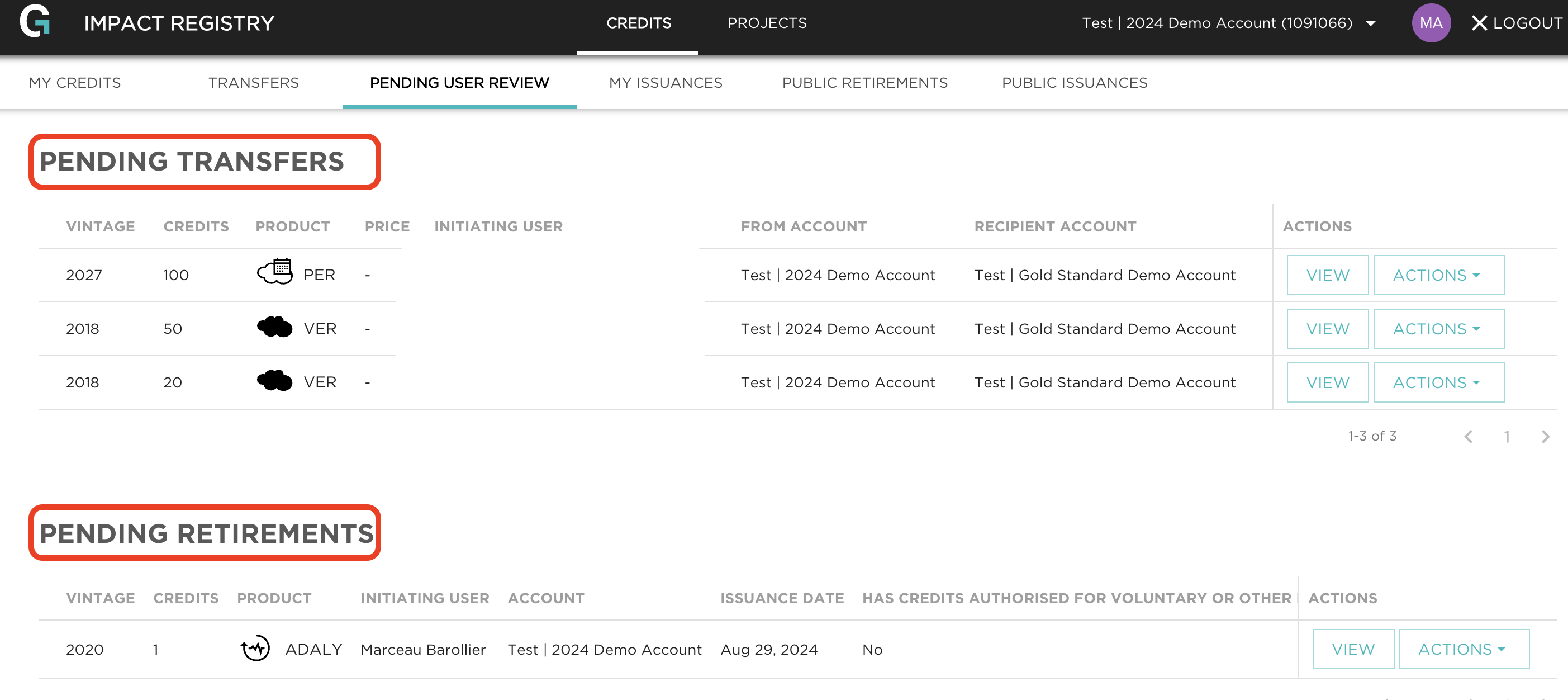
Step 3:
The second user can then choose to approve or reject the transaction by selecting the appropriate option.

Should you have any further questions or need additional guidance, please email us at registry@goldstandard.org.
Who receives Impact Registry notifications?
Notifications are sent from the Impact Registry for any transaction event, for example, incoming and outgoing transfers initiated/confirmed/rejected/cancelled and retirements. Notifications are sent to all users associated with a particular account or sub-account.
There is no notification sent when we issue credits into an account, however, if the issuance had a Share of Proceeds (SoP) component for the fee, a notification would be sent out related to the SoP transfer.
Invoices are automatically sent to whoever is saved in our Finance system as the billing contact(s) at the time of invoice generation.
Billing and Company Details
Where will my invoice for the Registry be sent?
The annual Registry fee is detailed in the Gold Standard Fee Schedule - this is pro rata’d in the first year.
Invoices for the annual fees are sent out in the first few months of the year to the email
address which has been registered as the billing contact during account opening.
How can I change my company name in the registry?
We require a copy of the legal document detailing the company name change. Please email this to us at registry@goldstandard.org.
Credit management
How do I transfer credits?
Please refer to section 4.1 of the Impact Registry User Guide.
Transfer fees are applied to transfers of credits from one account holder to another, when the account holders are not connected by the same master account. The fees can be found in the Gold Standard Fee Schedule, and further information on these fees can be found in the related FAQs.
How do I retire credits?
Please refer to section 4.4 of the Impact Registry User Guide.
A per credit fee is applied to all credits that are retired. The fees can be found in the Gold Standard Fee Schedule, and further information on these fees can be found in the related FAQs.
For any remaining questions, please contact us at help@goldstandard.org
Was this article helpful?
That’s Great!
Thank you for your feedback
Sorry! We couldn't be helpful
Thank you for your feedback
Feedback sent
We appreciate your effort and will try to fix the article